Using the Official eTenders Portal: Find the Right Notice and Status
Find the official tender record, distinguish advertised, closed, awarded and cancelled notices, and keep a reliable source trail.
At a glance
Start at National Treasury's official eTenders portal, select the relevant notice status, search the exact reference and confirm the current documents with the issuer before acting.
This is independent guidance from TenderSearch SA, not advice from a government authority. Verify current requirements with the issuer and these official references: National Treasury eTenders: official notices · National Treasury Transparency Portal: coverage, downloads and licensing.
Know which site you are using
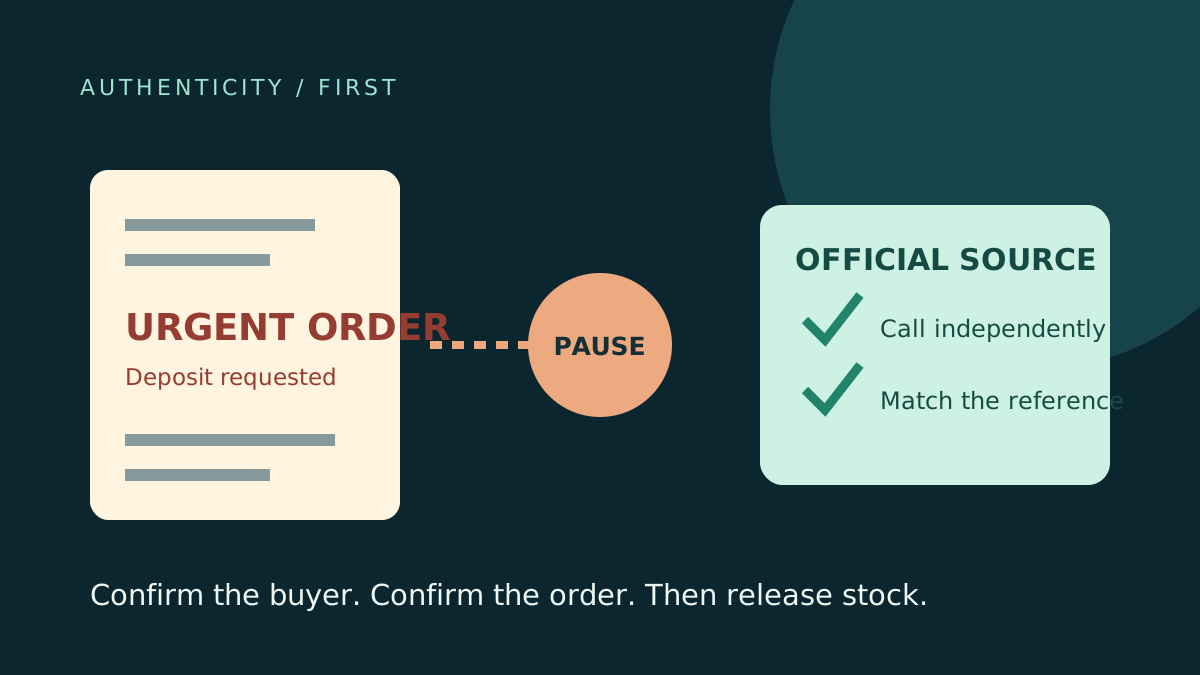
National Treasury's eTenders portal is an official publication destination. TenderSearch SA is an independent discovery service, not Treasury, a procurement authority or a gateway that bidders must pay to use. Public opportunities can be accessed through official channels without buying a TenderSearch subscription. This guide explains how to check the source when a search result, forwarded message or saved alert needs verification.
Open the official address directly rather than trusting an advertisement that resembles government branding. On the portal, look for the opportunities navigation and the status choices. Interface labels and layouts can change; the purpose of the steps below is to identify the correct record, not to depend on a particular button staying in the same position.
Search in two passes
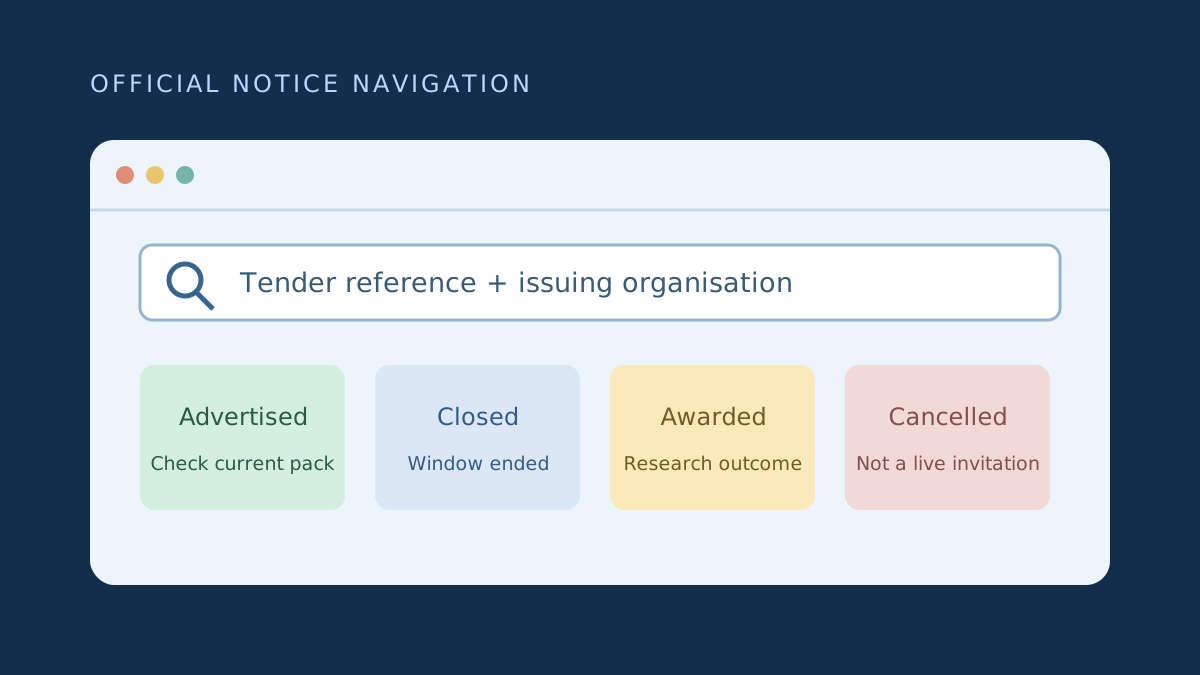
Use the tender reference first. Copy it from the document or notice, preserving letters, slashes and the financial-year suffix. If an exact search fails, try a distinctive portion of the reference and then the buyer's name plus a short scope term. Buyers can be listed under institutional names that differ from familiar abbreviations. A broad phrase such as maintenance can return unrelated sectors.
On your second pass, narrow by province or organ of state where the interface supports it. Do not assume that a buyer's head-office province is the delivery location. Read the work description and delivery schedule. A national entity can buy work in several provinces, and a regional label alone does not establish local eligibility.
Keep a search log when the reference is difficult to locate: phrase tried, status selected, date checked and issuer website inspected. This prevents repeated unproductive searches and gives the procurement office enough detail to help when you ask for the official record.
Read status as information, not a promise
Currently advertised opportunities are the starting point for potentially open bids. Closed usually tells you the submission window has ended; it does not identify the winning supplier. Awarded records describe a published result, subject to the details and later changes. Cancelled notices should not be treated as live opportunities merely because an old PDF still downloads.
If a tender is re-advertised, compare references and scope rather than assuming the earlier submission carries forward. A cancellation followed by a similar advert can require a fresh response. Likewise, an award entry does not prove that every planned item was ordered, the contract was signed or final expenditure equals the published award value.
Build a small source pack
Save the official notice URL, downloaded documents, the reference, issuer name, date retrieved and any amendment notices. Record the stated closing date and time exactly as published; do not fill an unknown date with a convenient estimate. If the portal and issuer page disagree, request written clarification through the published channel and monitor both sources.
Illustrative workflow: you find a cleaning advert in a third-party search, then locate the same reference under the official advertised opportunities. The issuer's own site includes a later addendum changing the submission destination. Save both versions, mark the earlier instruction superseded and obtain clarification if the change is ambiguous. Finding the first PDF was discovery; reconciling the current instruction is verification.
Choose the next action deliberately
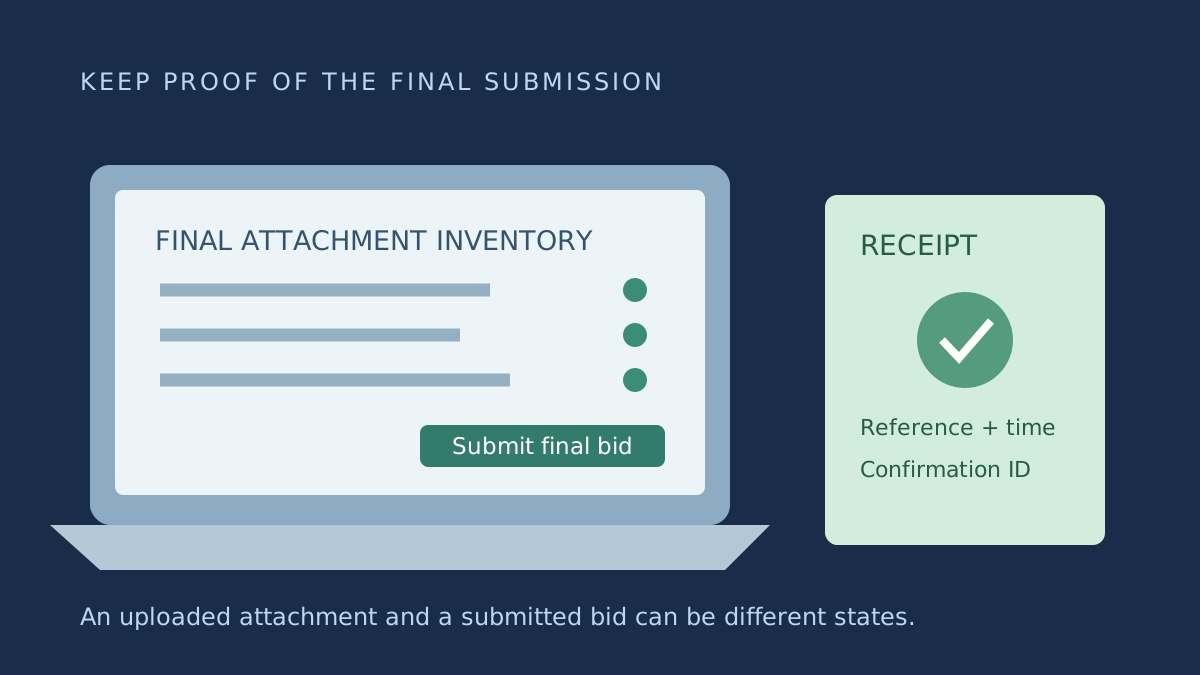
For an open opportunity, move to the issuer's document and submission instructions. The publication portal is not necessarily the place where a bid must be uploaded. Some issuers use their own electronic tendering platform; others prescribe a physical submission. Never assume an email attachment or a portal bookmark constitutes a submitted bid.
For a closed or awarded notice, switch from bidding to research. Record what is actually published and leave missing outcomes marked unknown. If the official portal is unavailable, retry and check the issuer directly; a search engine's cached snippet is not a current closing instruction. Discovery tools can help you monitor, but responsibility for verifying the latest official requirements remains with the bidder.
For shared team research, record who checked each source and when. A saved bookmark may open a changed page later, so keep the downloaded evidence too. Where the interface offers several attachments, inventory them against the notice rather than assuming the first download is the complete pack. This simple habit helps distinguish a missed attachment from a later official amendment.
- Identify official domain and exact reference.
- Select the correct status.
- Compare buyer, scope and delivery location.
- Download documents and check amendments.
- Use only the issuer-authorised submission channel.
Frequently asked questions
Does closed mean awarded?
No. A closed submission window and a published award are different events. Look for a linked award record or ask the issuer.
Must I subscribe to TenderSearch SA to use eTenders?
No. TenderSearch SA is independent. A subscription pays for the features stated on its pricing page, not official portal access or government registration.
Found this useful? Share it with another business — it costs you nothing and helps us reach more South African bidders.
Put your bid preparation into practice
Browse public tender previews, check the official requirements, then shortlist opportunities that fit your business. Starter is R149/month for search and saves. Professional at R299/month adds daily keyword email alerts, unlimited saves and closing-date reminders.
Compare tender subscription plans